Compress or Resize an Image: Which Do You Need?
An upload requirement can describe bytes, pixels or proportions. Start by identifying which one is preventing your picture from being accepted.
Read the requirement first
A limit such as 100 KB refers to the size of the saved file. A requirement such as 600 × 400 refers to its width and height in pixels. A square requirement describes proportions. These are separate properties: a square can be many different pixel sizes, and two pictures with identical dimensions can have different file sizes.
Resize when dimensions are the problem
Our original sample is 1200 × 800 pixels. With proportions locked, setting its width to 600 produces a height of 400. Resizing removes pixels when making a smaller picture. Enlarging uses interpolation and does not restore detail missing from a source. If the required shape is different, crop first rather than forcing unrelated width and height values.
Compress when bytes are the problem
For a JPG or WebP, adjust quality and compare actual output bytes and visual detail. Our compressor's optional target-size field tries lower quality settings if necessary. It reports when a target cannot be reached; it does not silently change your dimensions. Reducing dimensions can be a better next step than accepting unreadable detail.
Check the finished file
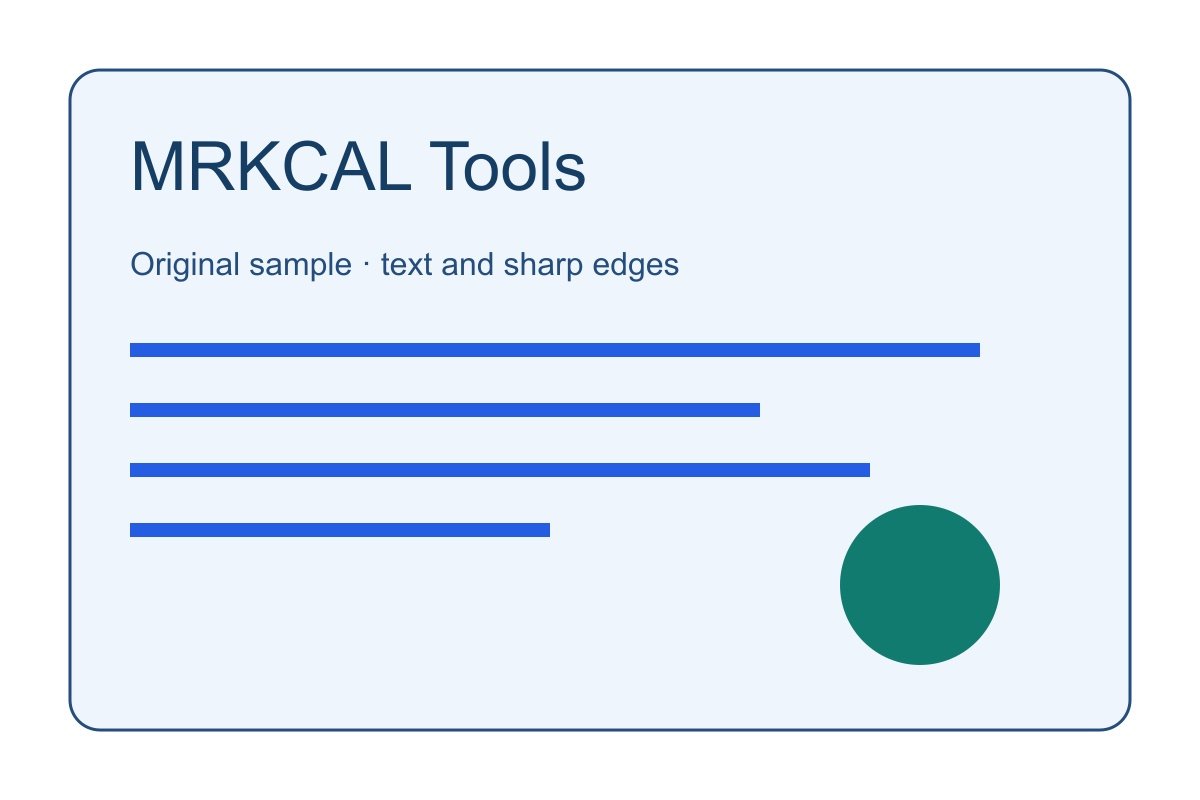
Try the downloadable synthetic image and text-heavy graphic on Image Compressor. Fine text and sharp edges can reveal artifacts differently from smooth colors. View the result at a realistic display size, confirm dimensions and bytes, and retain the original. A result from one image and browser is not a guarantee of savings for every photo.
Try the samples
These original samples were created for this site. Download a copy and try the related tool. Some samples contain English text so that the same input can be compared across interfaces.
sample-landscape.jpg ↓ sample-graphic.jpg ↓
Continue with a related tool
Questions or a correction? mrkcal@mrkcal.com