Convert Word to PDF Without Uploading: Text, Layout and Limits
A private conversion workflow keeps the source document on your device. It should also make the output clear: a PDF of page images and a PDF with selectable text serve different needs. This guide uses our own downloadable sample so you can inspect the difference.
Start with a modern DOCX copy
The converter accepts .docx rather than legacy .doc or macro-enabled .docm files. If your document is older or protected, open it in an editor you trust and save an unprotected DOCX copy that you are authorized to process. Keep the editable original. The browser tool accepts one file up to 15 MB and checks a 40 MB unpacked-content limit.
Choose the export for the job
Use Download PDF to save the previewed pages as a ready-to-download PDF. Each page is an image, so this version does not retain selectable text, search, active hyperlinks, form fields or accessibility tags. Use Print / Save as PDF when text selection matters. Choose a PDF destination in the browser print dialog; paper size, margins and browser headers can change the printed result.
Compare the original sample and both PDF outputs
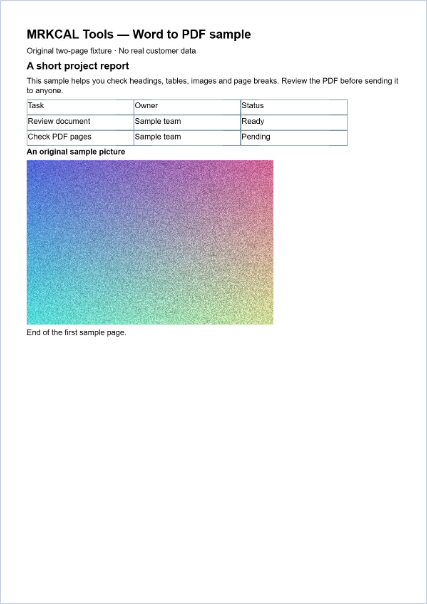
Download the DOCX, the image-based PDF and the browser-print PDF below. The original has two pages with headings, a table, an image and multilingual text. Open each PDF in your own viewer. Check both pages, select a line of English and a line of Chinese, and inspect the table and picture. The observations below describe these specific sample files, not a guarantee for every Word document.
Inspect layout, fonts and page breaks
The converter uses browser layout rather than Word’s layout engine. Missing fonts, floating objects, equations, columns and automatic fields can change appearance. Explicit page breaks are used where available. Long continuous sections can be split across extra pages, and image-page splitting can cross complex tables or pictures. Compare important documents with Word’s own PDF export when precise formatting is required.
Use a smaller document when conversion is difficult
The output limit is 25 pages. Large page dimensions or heavy images can exceed a device’s memory even below the input-size limit. Try standard image quality, reduce oversized pictures in an editable copy, or split a long source document into smaller DOCX files. You can combine accessible PDF outputs afterward with Merge PDF. Combining files does not itself compress their images.
Check privacy and keep your working copy
Selecting a document does not upload it to our hosting or a conversion API. The browser still requests the website and its software assets. External resources inside the document are blocked rather than fetched. Our functional checks included real two-page PDF downloads through all 21 interface languages, plus a continuous-flow fixture that produced three pages. Browser and font differences still matter, so review the result before sharing it.
| Check | Observed result |
|---|---|
| Image-based PDF download | 2 pages; page images; text selection is unavailable. |
| Browser-print PDF from the same sample | 2 pages; English and Chinese text selection verified in the test viewer. |
| Long source without manual page breaks | A separate original fixture produced 3 PDF pages; the final paragraph was present. |
| Public sample contents | Original demonstration content only; no real customer documents. |
Try the samples
These original samples were created for this site. Download a copy and try the related tool. Some samples contain English text so that the same input can be compared across interfaces.
sample-word.docx ↓ sample-word-output.pdf ↓ sample-word-print.pdf ↓Continue with a related tool
Questions or a correction? mrkcal@mrkcal.com