JPG to PDF
Send several JPG photos or scanned JPG pages as one PDF attachment. Put the images in the required order, choose a page layout and check the result before sending it.
Before you start
- Input
- Up to 20 JPG/JPEG images.
- Output
- One PDF with one image per page.
Loading tool…
How to use this tool
- Select one or more JPG images.
- Arrange them and choose A4, Letter or image-sized pages.
- Review the page preview and download the PDF.
Understand the result
Each selected image becomes a PDF page. Fit-to-page should preserve image proportions, leaving space where needed. This operation packages images in a document; it does not recognize text or create an editable word-processing file.
How do I combine multiple JPG photos into one PDF?
Choose the JPG or JPEG images, arrange them in reading order and select the page size and margins. For a three-photo attachment, check that all three pages appear in the expected sequence before sending it. The PDF contains pictures of the pages; it does not add searchable text.
Can I use PNG or HEIC photos in this JPG-to-PDF tool?
This tool accepts JPG and JPEG. Convert a PNG or supported HEIC image to JPG first, then choose that result here. Download each converted file before continuing. When the source contains transparent areas, pick a suitable JPG background before building the PDF.
Keep pages readable when choosing a paper size
Fitting a picture on A4 or Letter may leave margins because the image and page have different proportions. Review text and edges before saving. The PDF contains the image; conversion alone does not make photographed text searchable.
Try a sample
Combine these three numbered sample images. Choose A4 and 10 mm margins, then check that the output contains three pages in the order you selected.
Image 1 ↓ Image 2 ↓ Image 3 ↓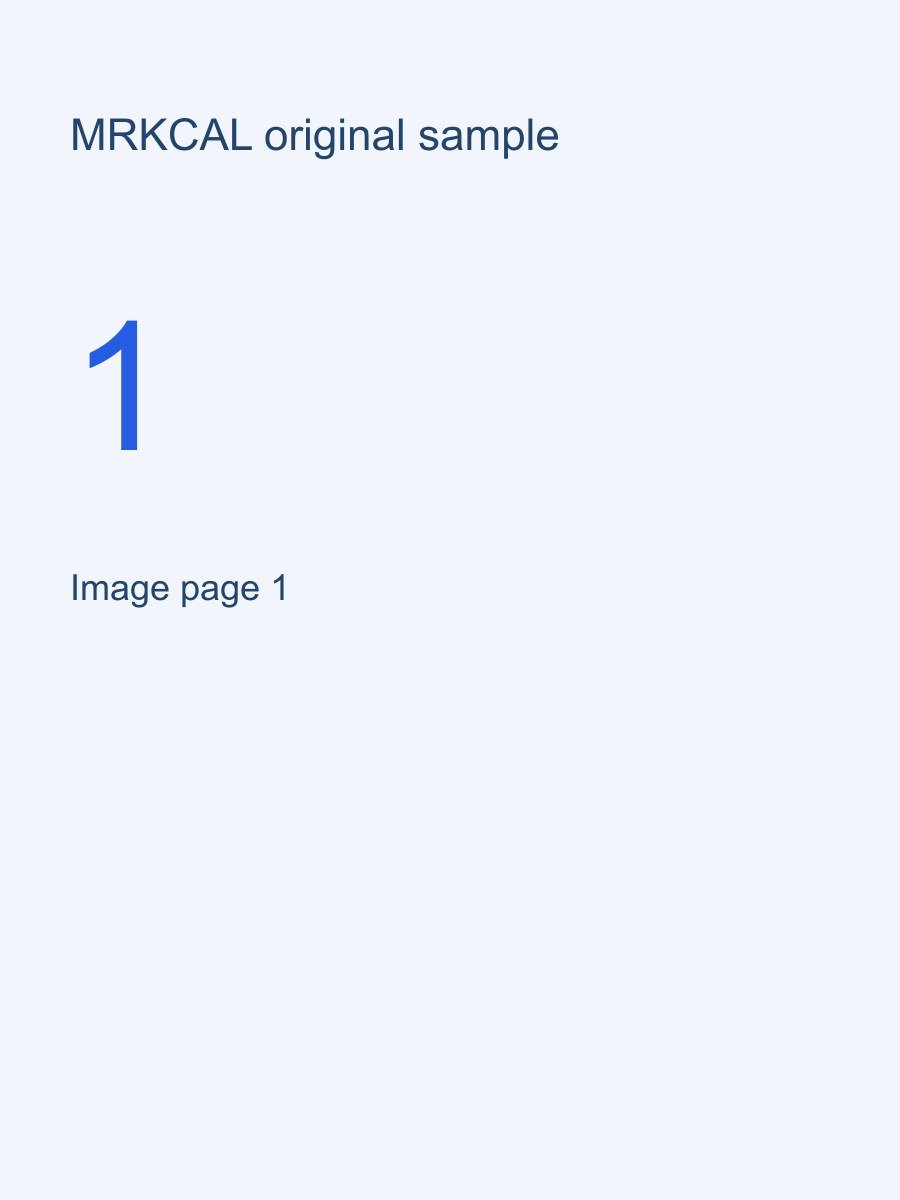

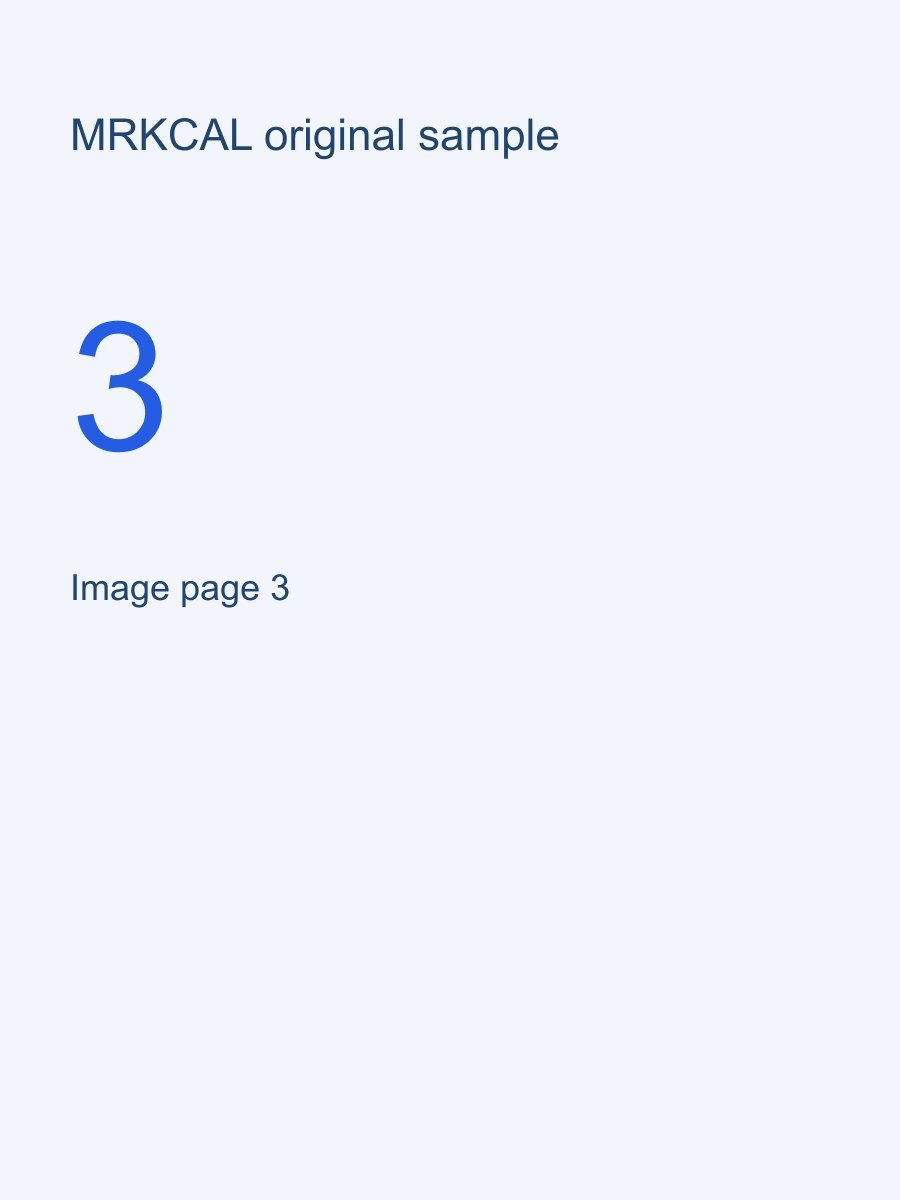
If the result is not what you expected
I have PNG or HEIC pictures instead of JPG.
Convert those pictures to JPG first, then choose the converted files here. Check transparency and orientation after conversion. The PDF contains images; it does not add a searchable text layer.
Next useful tool: PNG to JPG →Important limits
- Image text remains image content.
- Large images can produce large PDFs.
Frequently asked questions
Will the text in my JPG become searchable?
No. This tool places the pictures into a PDF without adding a text layer. Image to Text can produce separate plain text from a picture, but it does not add searchable text to this PDF.
Can I change the image order before creating the PDF?
Yes. Arrange the images before exporting, using the available drag controls or move-up and move-down buttons. Check the downloaded page sequence before sending it.
Questions or a correction? mrkcal@mrkcal.com